How to Get a Google Review QR Code (and Where to Put It)
How to get the official Google review QR code from your Business Profile, where to place it so customers actually scan it, and the rules that keep your review requests compliant.
 By Editorial Team
9 min read
By Editorial Team
9 min read
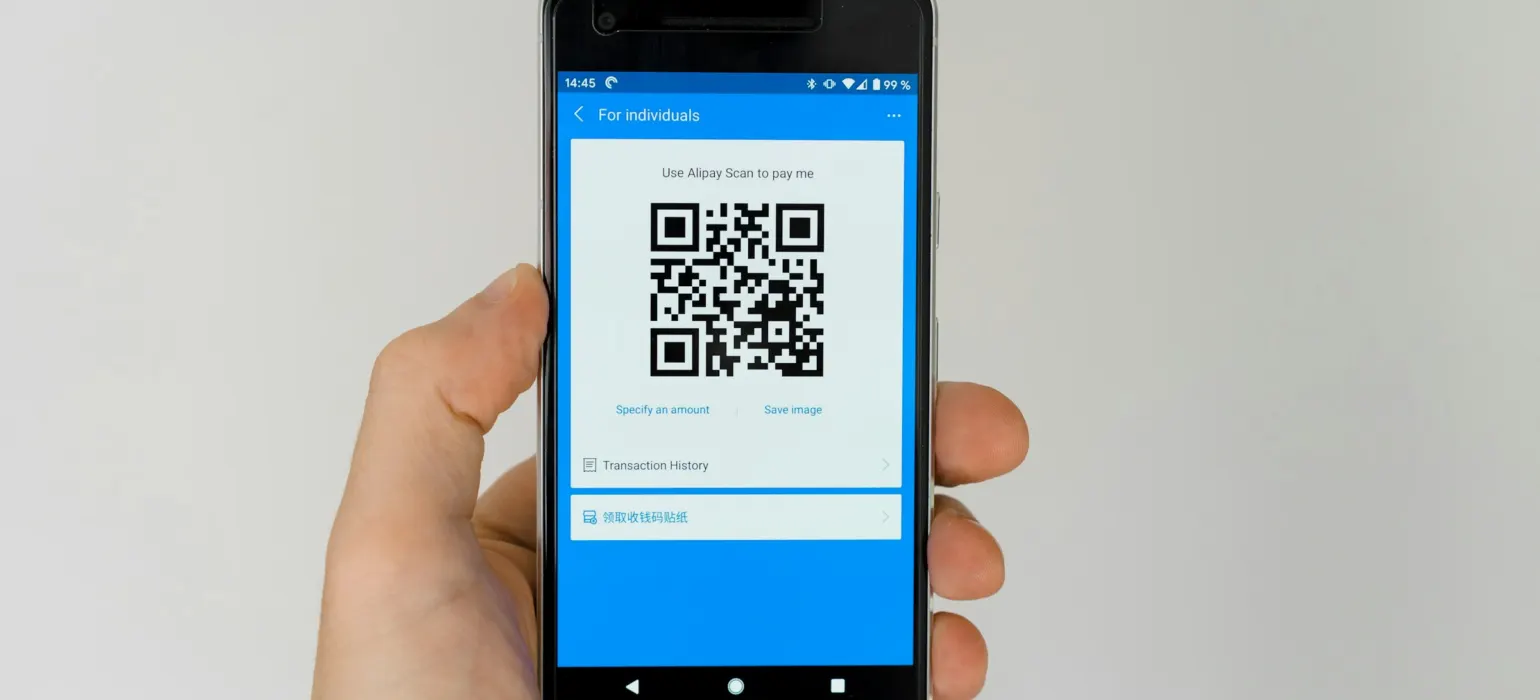
To get a Google review QR code, sign in to your Google Business Profile on a computer, open your reviews, select “Get more reviews,” and save the QR code image that appears alongside your review link. Scanning it opens the Google review form for your business. Print it where customers pause after a good experience, such as the counter, receipts or invoices, and show the same code to every customer.
Google provides the code for free, so you don’t need a paid generator. The work is in placing it well and keeping the process within Google’s rules.
How to get your Google review QR code
Google’s Business Profile help center describes the current steps as follows. Menus change from time to time, so if a label looks different, search the help center for “Create a Google link or QR code to request reviews.”
- Sign in on a computer. Go to your Business Profile while signed in to the Google account that manages it. Google notes that the QR code option is available in a computer browser, not on mobile.
- Open your reviews. Select “Read reviews.”
- Select “Get more reviews.” A panel opens with your short review link and a QR code.
- Copy the link. Select “Copy” and save it somewhere your team can find it. You’ll use it in emails and texts.
- Save the QR code. Right-click the code and choose “Save image as.” Keep the original file so you can reprint it later without rescanning a photocopy.
If you manage several locations, each one has its own profile, link and code. Label the files clearly by location, because a customer who reviews the wrong branch creates a problem for both.
Our guide on getting more Google reviews covers the direct review link and the wider request process. This guide focuses on the printed and physical side.
Where to place a Google review QR code
A QR code works when three things line up: the customer has just had a good experience, they have their phone in hand, and they have a minute to spare. Place codes where those moments happen.
| Placement | Works well for | Tips |
|---|---|---|
| Counter or front desk sign | Salons, clinics, retail, repair shops | Put it at eye level near where people wait for a card reader or a receipt, not on the door. |
| Printed receipts | Retail, restaurants, auto service | Keep it small but scannable, with one line of text above it. |
| Invoices and job completion forms | Contractors, home services, professional firms | Add it at the bottom with a short thank-you. Invoices are often kept and reread. |
| Table tents and menus | Restaurants, cafes, bars | Place it where it’s seen after the meal, such as on the check presenter, rather than while people are ordering. |
| Packaging inserts | Ecommerce, local delivery | A small card in the box works for customers who have seen the product in person. |
| Business cards and leave-behinds | Field technicians, realtors, advisors | A card handed over at the end of a visit feels personal rather than automated. |
| Waiting room or exit signage | Medical, dental, veterinary, fitness | Choose the checkout or exit, not the intake area, so people review after the service. |
The code works best with a spoken ask. A sign on its own is easy to ignore. A staff member saying “If you have a minute, we’d really appreciate a Google review, the code’s right here” is much harder to ignore. Keep that script short and identical for every customer.
Designing a QR code that people can scan
Most scanning problems come from design choices, not the code itself.
- Size. Print it large enough to scan from where the customer will be standing or sitting. Codes on counter signs need to be bigger than codes on a receipt someone holds in their hand.
- Contrast. Dark code on a light background. Avoid colored or reversed codes unless you’ve tested them on several phones.
- Quiet zone. Leave clear space around the edges. Codes crammed against borders or text often fail.
- A clear label. Tell people what happens when they scan: “Scan to leave us a Google review.” Unlabeled codes get ignored, and people are rightly wary of scanning codes they can’t identify.
- Finish. Glossy lamination can reflect overhead light and stop the camera reading the code. A matte finish is safer.
- Your branding, not Google’s look-alike. Use your own logo and colors on the sign. Don’t design it to look like an official Google notice.
Test before you print in bulk
- Print a single proof at the final size.
- Scan it with at least one iPhone and one Android phone, using the built-in camera app.
- Confirm it opens the review form for the right business and the right location.
- Try it from the actual spot: across the counter, at the table, in the lighting of the room.
- Test it signed out, or on a phone without your account, to see what a customer sees.
Repeat the test whenever you reprint, and every few months on existing signs. A code that points at an old or merged profile fails quietly, and you may not notice for weeks.
Don’t gate the QR code
Some review tools offer a “smart” QR code that opens a short survey. Happy customers are sent to Google; unhappy ones are sent to a private feedback form. That is review gating, and Google’s content policy prohibits it: businesses may not discourage negative reviews or selectively solicit positive ones.
The same applies to people. Staff shouldn’t hand the review card only to customers who smiled at checkout. If you want private feedback too, offer it separately and to everyone, with the Google code visible regardless of what they say.
Pressure is a problem too. It sits badly with Google’s guidance for businesses and tends to produce short, generic reviews. A visible code and a friendly ask are fine. Standing over someone until they post, or making it part of checkout, is not.
No incentives, even small ones
“Scan for a free coffee” or “money off your next visit when you leave a review” breaks Google’s rules, which prohibit offering incentives such as payment, discounts or free goods in exchange for a review. It doesn’t matter whether you ask for a positive review or any review.
The FTC’s 2024 rule on consumer reviews adds a separate layer: businesses must not offer incentives conditioned, expressly or implicitly, on a review expressing a particular sentiment. Our guide to the FTC fake review rule explains it in full.
Keep the sign simple: a thank-you and the code. Nothing to redeem.
Not sure where to start?
Get a free audit of your search results and review profiles, with a prioritized fix list.
Get a free auditHow to track what your QR codes are doing
The official Google code doesn’t come with scan analytics, and you shouldn’t swap it for a third-party code that adds a redirect you don’t control. If that service shuts down or changes its terms, every printed code breaks. You can still measure results in simple ways:
- Review volume by week. Note the date each placement goes live and watch how many new reviews arrive on your Business Profile in the weeks after.
- Change one thing at a time. If you add receipt codes and a counter sign in the same week, you won’t know which one worked.
- Ask in passing. When a reviewer mentions something specific, a follow-up conversation sometimes reveals how they found the form. Don’t ask in the review reply.
- Use your review software, if you have it. Many review management platforms track links sent by email or text. Keep the physical QR code as the official Google one.
Watch the content too, not only the count. A new placement that brings in short, generic reviews is less useful than one that brings fewer but more detailed ones.
A worked example
This scenario is illustrative, not a real client.
A two-location auto repair shop has a strong rating at its original site and very few reviews at its newer one. The owner downloads the review link and QR code from each Business Profile and labels the files by address.
At both shops, she adds a counter sign at the payment terminal (“Thanks for trusting us with your car. Scan to leave a Google review.”) and prints the code on the bottom of every invoice. Service writers are trained to say one sentence to every customer at pickup, whatever the job and whatever the mood.
Before printing, she scans each proof with two phones and discovers the newer location’s sign had been set up with the original location’s code. She fixes it before a single sign goes out. Three months later, the newer location has a steady flow of recent reviews, including a few critical ones about wait times, which the manager replies to and uses to adjust scheduling. The profile now reflects how the shop actually runs.
QR codes alongside other ways to ask
A QR code covers the in-person moment. It doesn’t reach customers who pay online, book remotely or leave in a hurry. For them, send the same review link by email or text shortly after the service. Our review request text message templates include wording you can adapt.
If you’re managing several locations, checking that every code points to the right profile and keeping listings accurate is a job in itself. Our Google Business Profile management service handles that setup and upkeep.
Common mistakes
- Using a code from a random online generator. Some add tracking redirects or expire after a trial. Use the one Google provides.
- Placing the code where nobody waits. Doors and windows get walked past. Counters, tables and invoices get looked at.
- Printing before testing. A wrong-location code is expensive to reprint and confusing for customers.
- Adding a reward. Even a small one breaks Google’s rules.
- Only mentioning it to happy customers. That is gating, whether a person or software does the filtering.
Frequently asked questions
Is the Google review QR code free?
Yes. Google provides a review link and QR code in your Business Profile at no cost. You don’t need a paid QR generator to create one, and using Google’s own code avoids broken redirects later.
Why can't I find the QR code on my phone?
Google’s help center says the QR code option works in a computer browser, not on mobile. Sign in to your Business Profile on a desktop or laptop, open your reviews and select “Get more reviews.”
Can I offer a discount to people who scan the code and leave a review?
No. Google’s policies prohibit offering incentives such as discounts, payment or free goods in exchange for reviews. Thank customers for their time instead, and make the process easy.
Does a Google review QR code expire?
The code points to your review link, so it keeps working as long as that profile exists and the link doesn’t change. If you merge, move or reverify a profile, test your printed codes again to make sure they still open the right review form.